
The Reports tab allows access to several pre-defined single-click reports created from information entered into the Adviser program.
Please find information below to assist in navigating to these reports, this is available by clicking Reports tab across the top of the Adviser program:
Toolbar Orientation
 Plan/Actuals
 Standard "if you see it, you're in it" rules apply here. Reports can be generated with the unique content from either Plan or Actuals by toggling here
Print/Export
 Print direct from the Adviser program, click this icon and select your printer to continue
 Save the currently loaded report as a PDF on your computer
Browse
 Refreshes the currently loaded report, click once - report may take 30 seconds to compile
 Locate a phrase within the report, click this icon and type in the bar to locate
 Click through pages as required. In order of icon, click to start, click one page down, current page displayed or type to enter destination page, one page up, click to end
Zoom
 Fit the currently opened report to fill full width of screen
 Fit the currently opened report to show one full page on the screen
 Use drop down to select required Zoom for currently opened document
General Report
 Access report set-up, allowing the user to toggle components on and off as required, add logo, Prepared By comments and more. See below for more information.
 Drop-down allows the user to select Report parameters for the General Report - Summer, Winter or All. These are set by ticking or un-ticking the Summer flag in the Sowing zone
Report Configuration
The configuration for Reports is completed in the Reports tab of Adviser, in the ‘Setup’ menu. The settings described here are to do with branding and personal details on Reports.
To access Report Settings
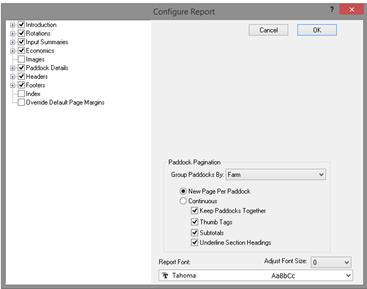
The pop-up box above will now be displayed, these are the customisation options available for the General Report. Expand each section, and use the tickboxes to turn components on and off.
Client Details entered into the Adviser program are displayed on the General Report and Spray Recommendations, and form the default recipients for email correspondence from the client file.
Client Details
Please note: multiple email addresses can be added to the client file and should be separated by a comma then a space. For example: klee@backpaddock.com.au, support@backpaddock.com.au
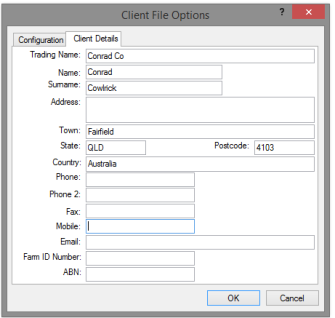
These details will appear on the front page of the Report as part of the Cover Page (enable this as required in Report Setup).
Reporting Configuration Tasks
Using the Setup tool above Reports can be reduced or information added as per requirement. Please expand all options in Report Setup to familiarise yourself with these, and find some common requirements below.
Example - Add Logo and "Prepared by" to Report (logo also used for Mapping)
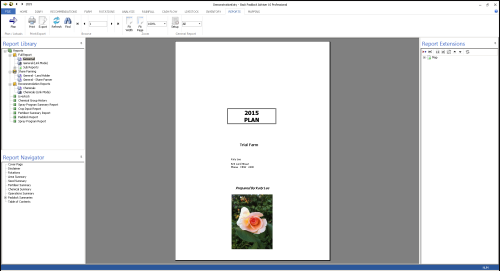
Completing the following steps will add a Prepared By name and logo to each page of the single-click Reports of Adviser. This is completed once and is saved across all client files.
Your Logo and Prepared By statements should now be visible on your report. Please note, adjustments to logo size may need to be made, these should be completed outside of the Adviser program, for example in Paint.
Example - Remove $ Figures from Reports
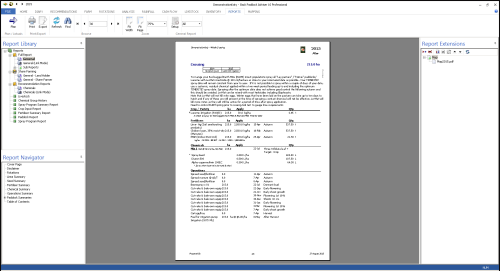
Completing the following steps will remove dollar values from Paddock Reports in the General Report. Financial figures will still be available in summaries.
Your General Report will be created without paddock financial information.